Filter
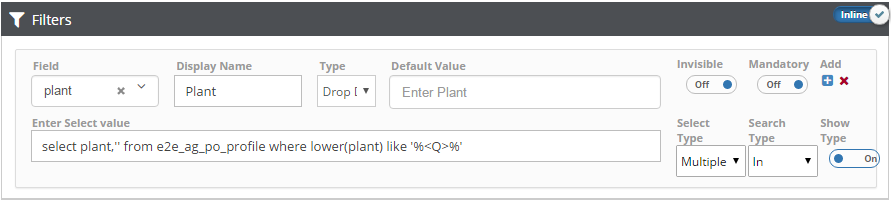
Filter is a process that removes some unwanted components from the data. To put some filter on the graph we have one dedicated panel for filter:
- Modal/Inline: We can view filter to the graph in two ways:
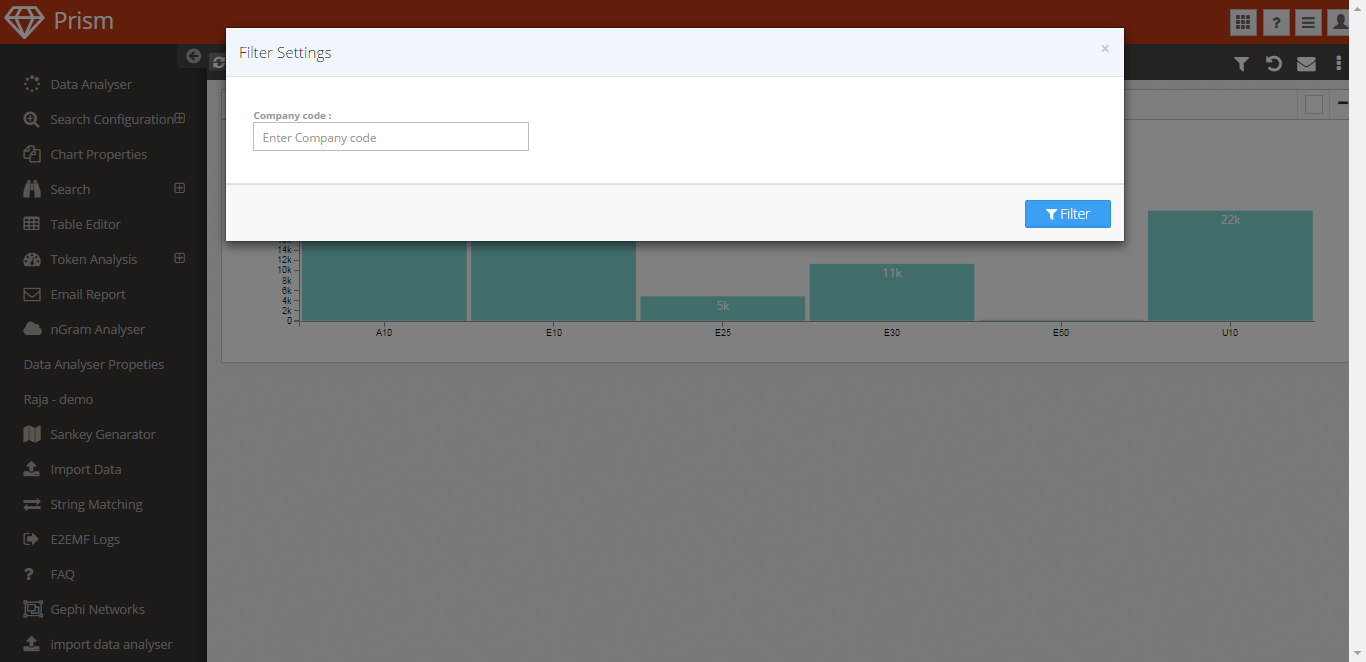
Modal: By default Modal is selected, if modal is selected then filter is available by clicking on Filter button.
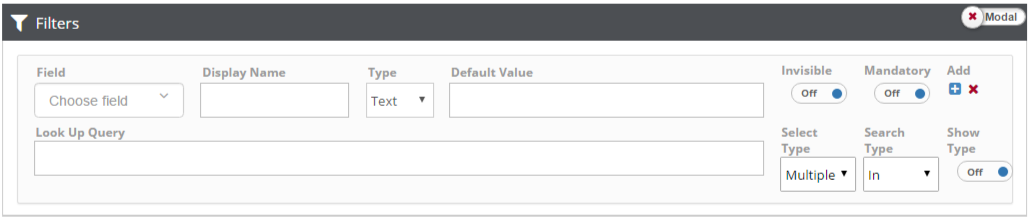
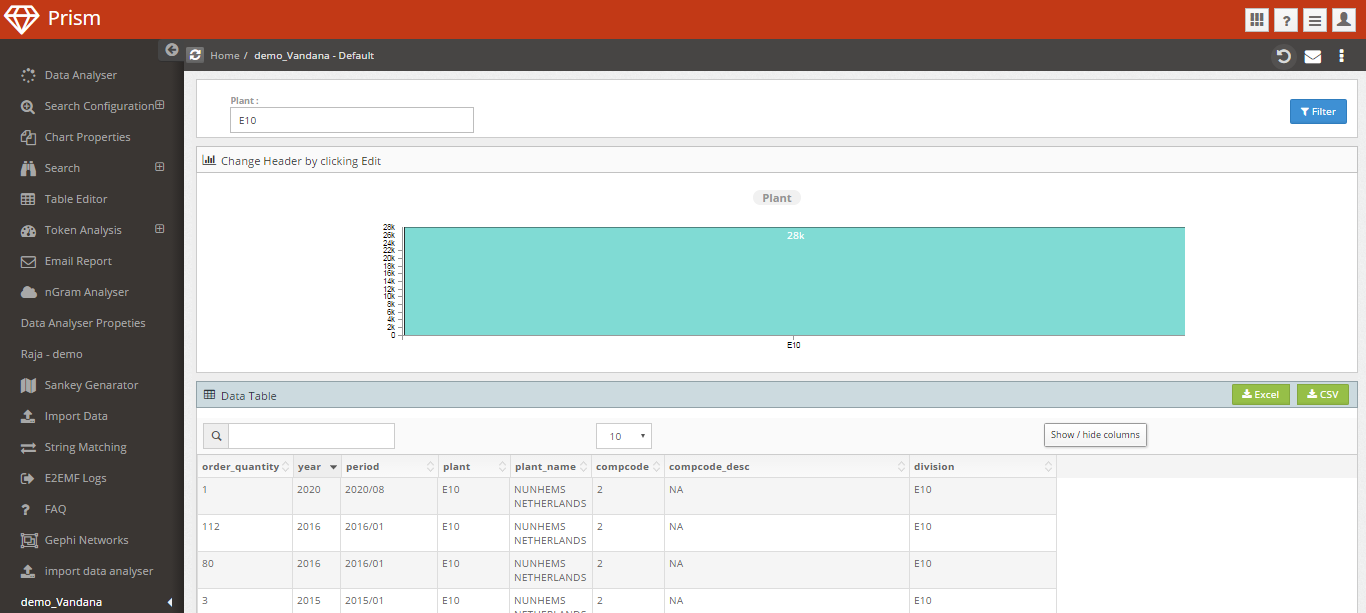
Inline: If Inline is selected then Filter will be available in the page itselt
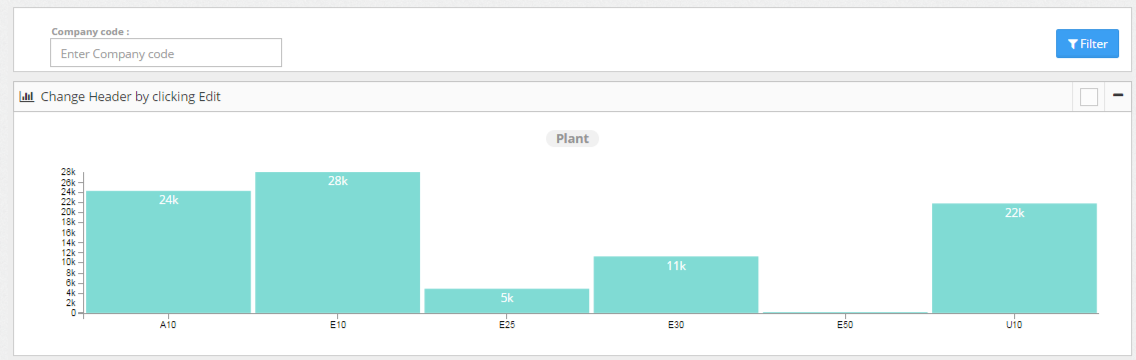
- Field: Select any field from dropdown on which you want to apply filter.
- Display Name: Name, which you want to display for filtration of the data

Click on Save button
Now, navigate to your saved profile and click on Filter button. Here you will see your edited Display Name
Type: Type of the data could be Text, Date, Dynamic date, Number, look Up and Drop Down
- Text: By default the Type is text.
- Date: If we want to get data for some specific time period, then we can select type to Date

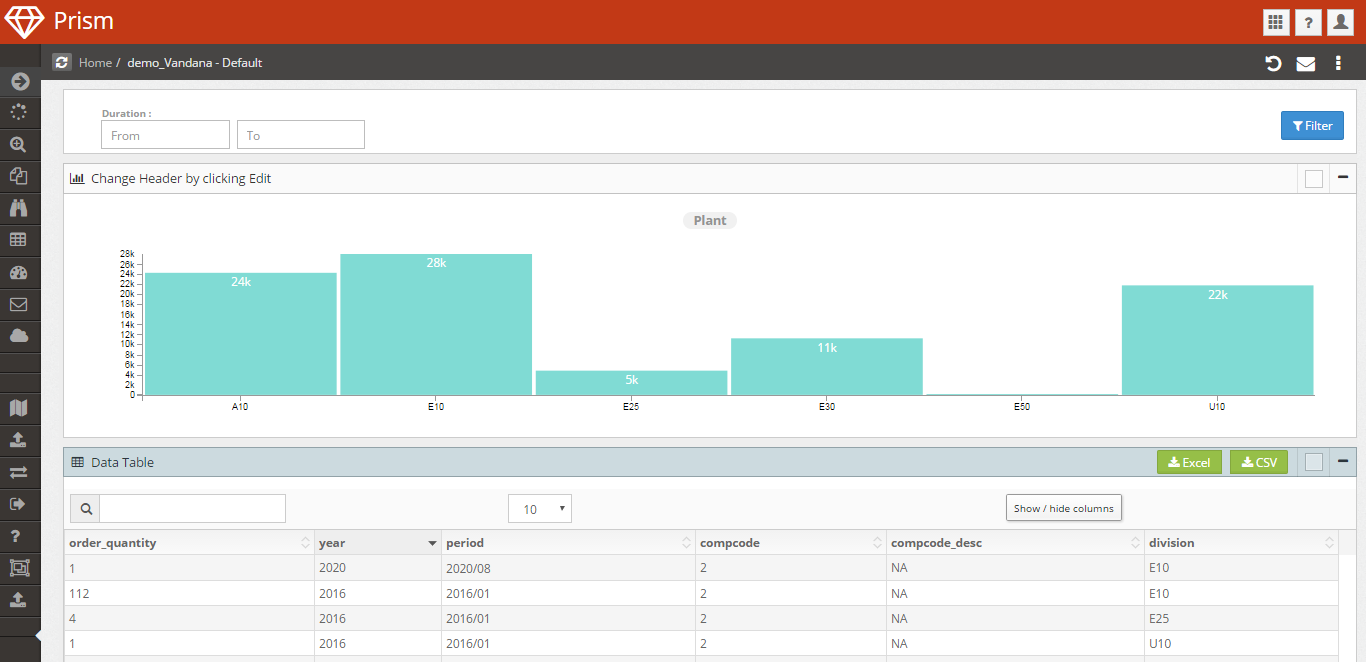
- Dynamic date: Dynamic date similar to date, the only difference is that it will automatically updated like for current month. A dynamic date is either a fixed set of dates or a range of dates that are a fixed offset of the current date.
- Number: If we select Number Type, then for filter we can only use number values.
- Look Up: If we will select Look Up Type then we can get your data on the basis of some condition i.e we can use query to get the data. We can write query to filter data in Look Up Query field.
- Drop Down: If we will select Drop down Type then we can have values in drop down for filter, we can write query in Look Up Query field to get data in drop down
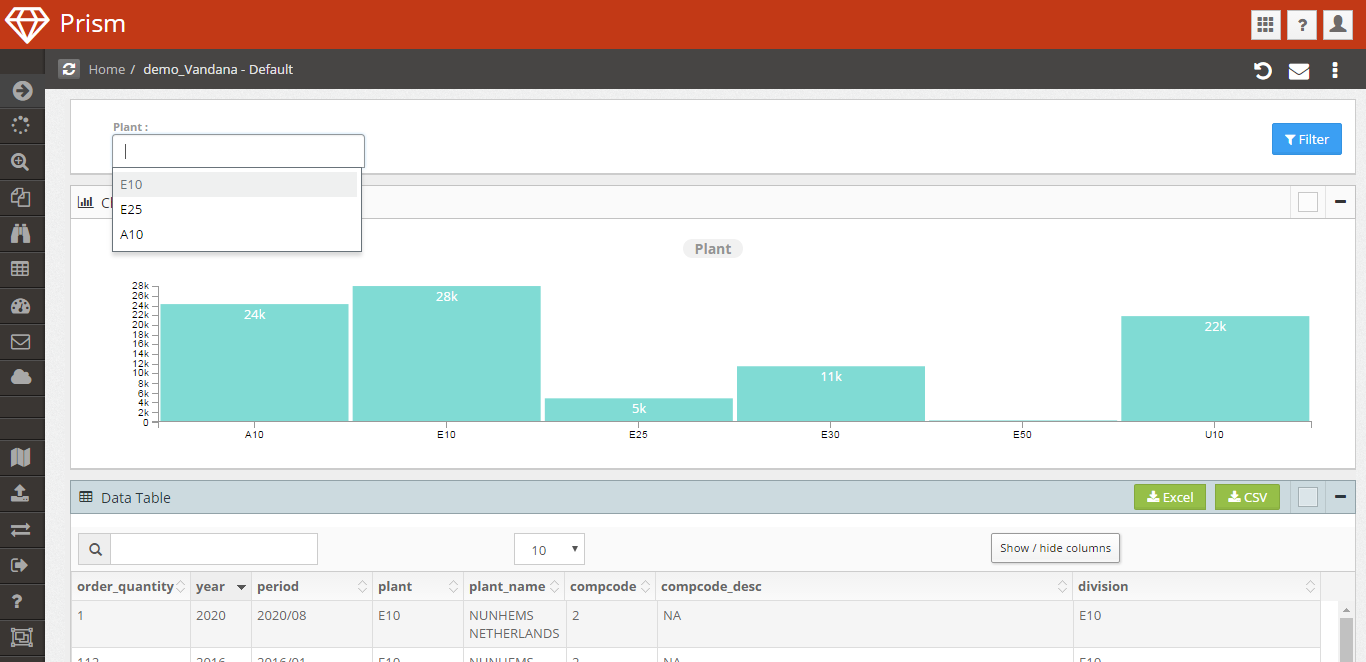
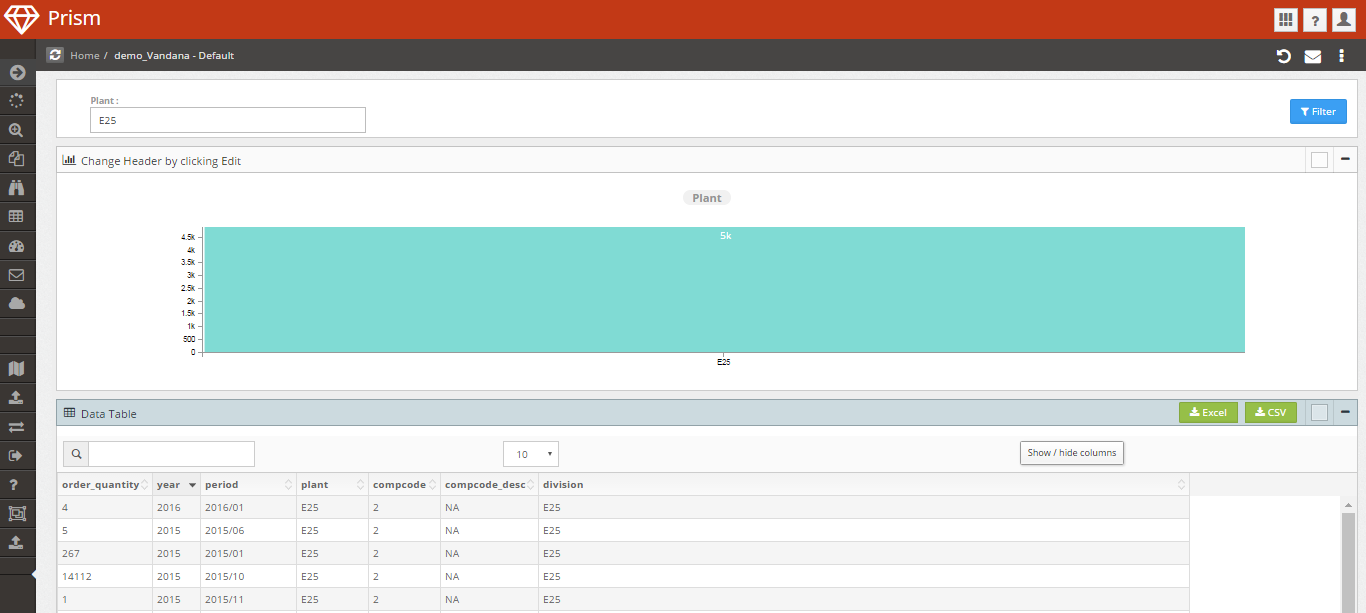
Default Value: you can put some default value for filter
like we are selecting taking “E25” default value for plant

So, it will be visible when we will do filter, it will show data for “E25” default value
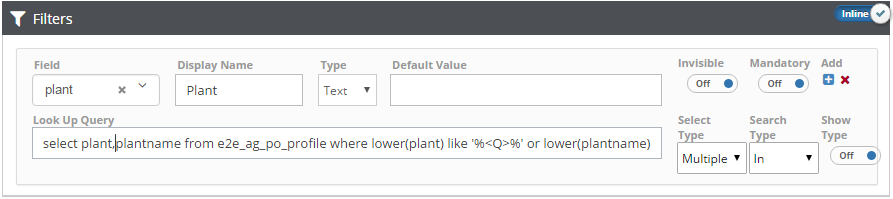
Look Up Query: You can filter data based on some condition/query. Specify the table, query, or list of values that provides the values for the lookup field.
like select plant,plantname from e2e_ag_po_profile where lower(plant) like ‘%<Q>%’ or lower(plantname) like ‘%<Q>%’
Save and view the profile
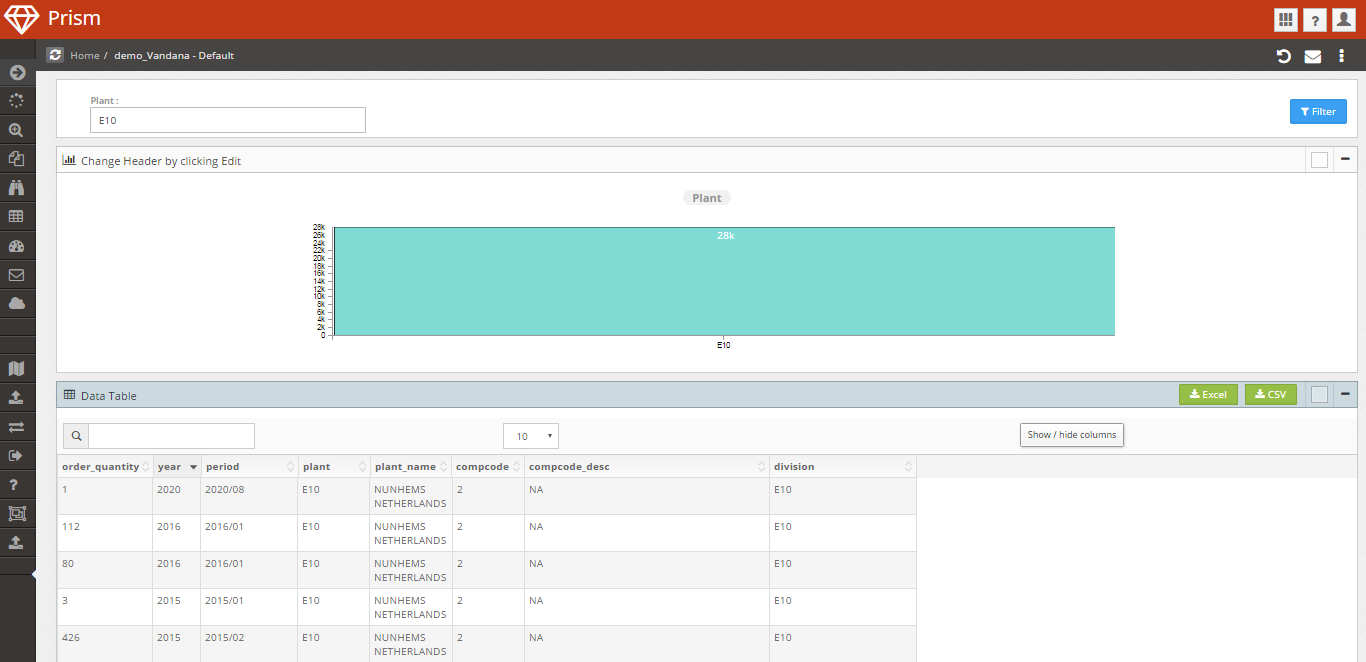
Invisible: invisible -> off, that means filter would be visible. If we will set invisible -> on, the filter will be invisible but applicable to the table.
Mandatory: you can set a mandatory field for filter the data i.e. if mandatory is on then it will not show any data without entering any data to that particular field

Add: we can add another field for filter
Click on + button to add another filter
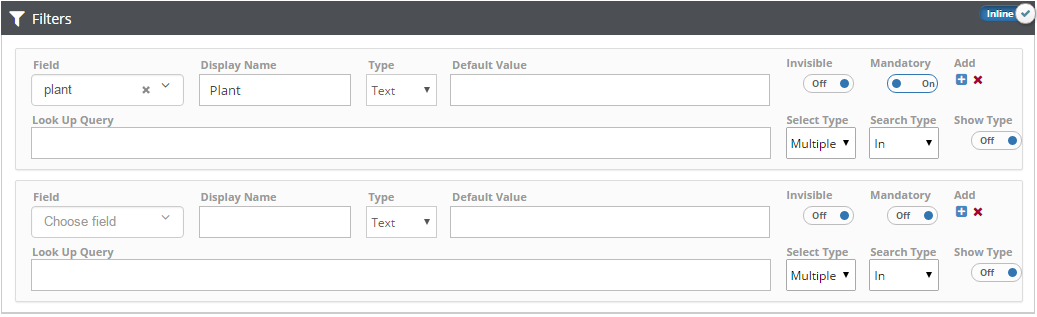
And you can remove any unwanted filter by clicking on x button.
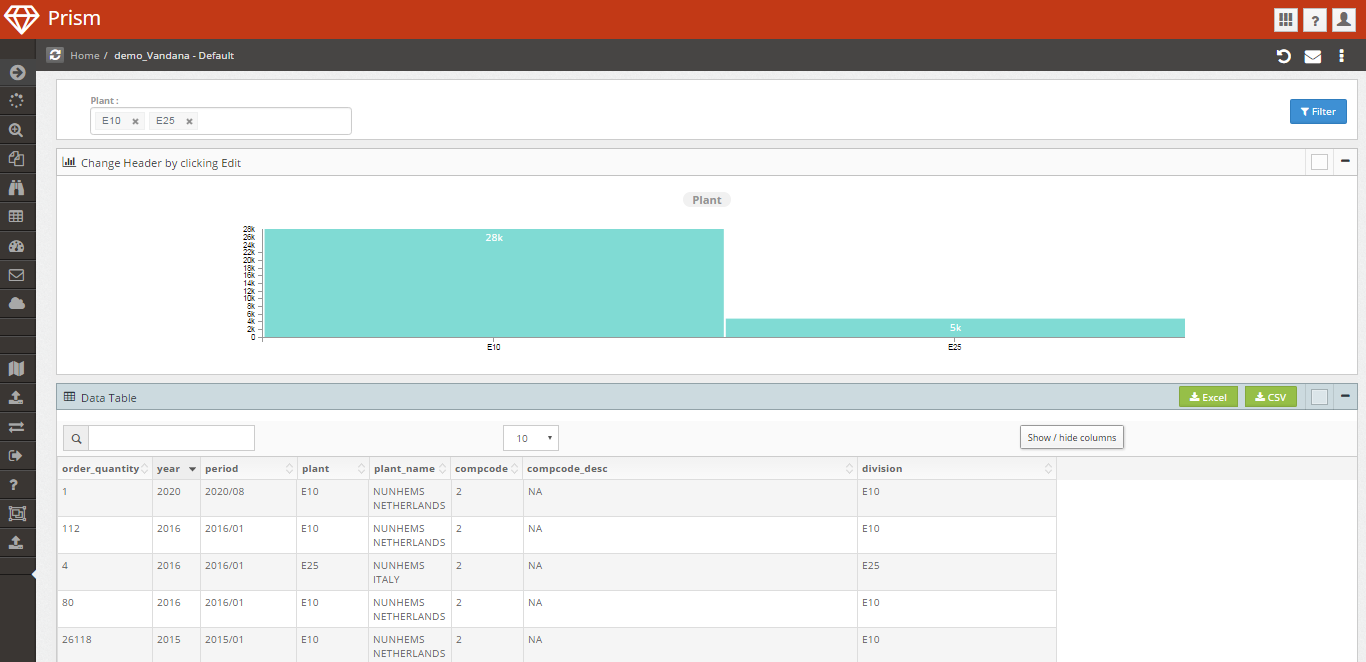
Select Type: select type could be single or multiple.
If we have selected Single then we can filter data only on one value, but if we have selected multiple Select Type then we will be able to filter on multiple values
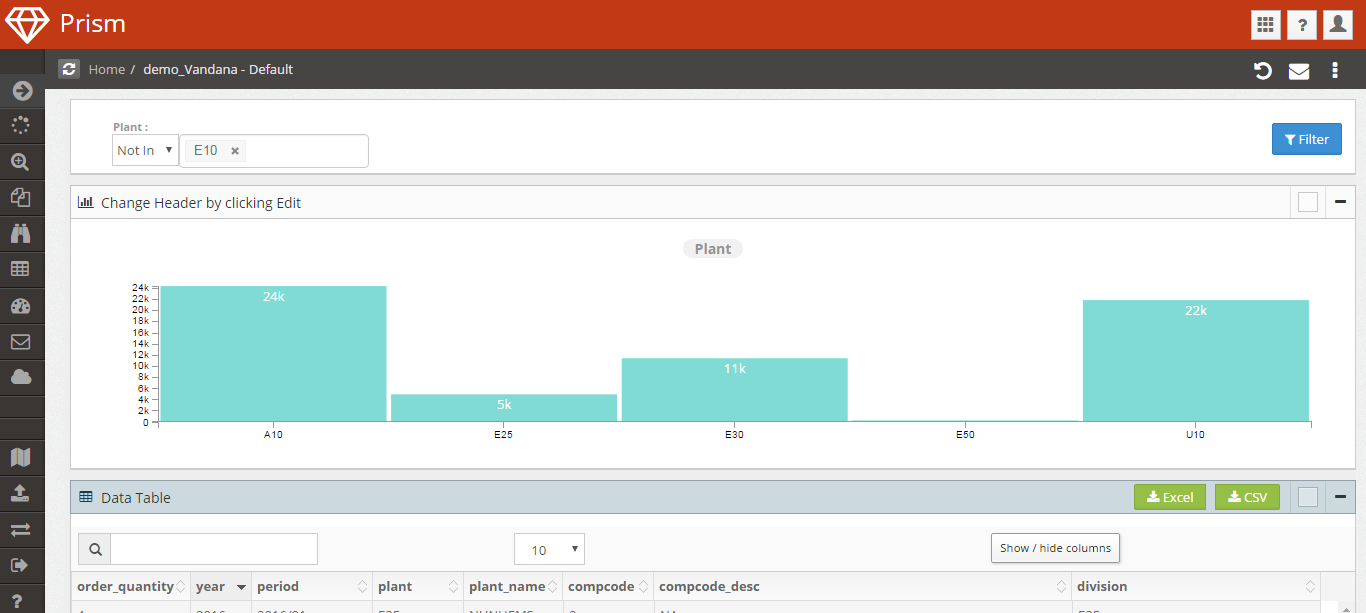
Search Type: Search type could be In, Not In, Like and Not Like
- In: If Search Type is In then it will show all the data of selected field
- Not In: It will show all the data except field selected
- Like: Like is used to filter for a specified pattern in a column
- Not Like: Not Like is used to filter data except some specified pattern.
Show Type: If Show Type is on then it will show search type in the filter screen